
 LC-2 Pro Tutorial | Attaching the Pen Clip Mount
Watch on YouTube ↗
LC-2 Pro Tutorial | Attaching the Pen Clip Mount
Watch on YouTube ↗
Techalogic support
LC-2 Pro support
Camera and light setup. Find the right instructions, follow a tutorial or troubleshoot a problem.
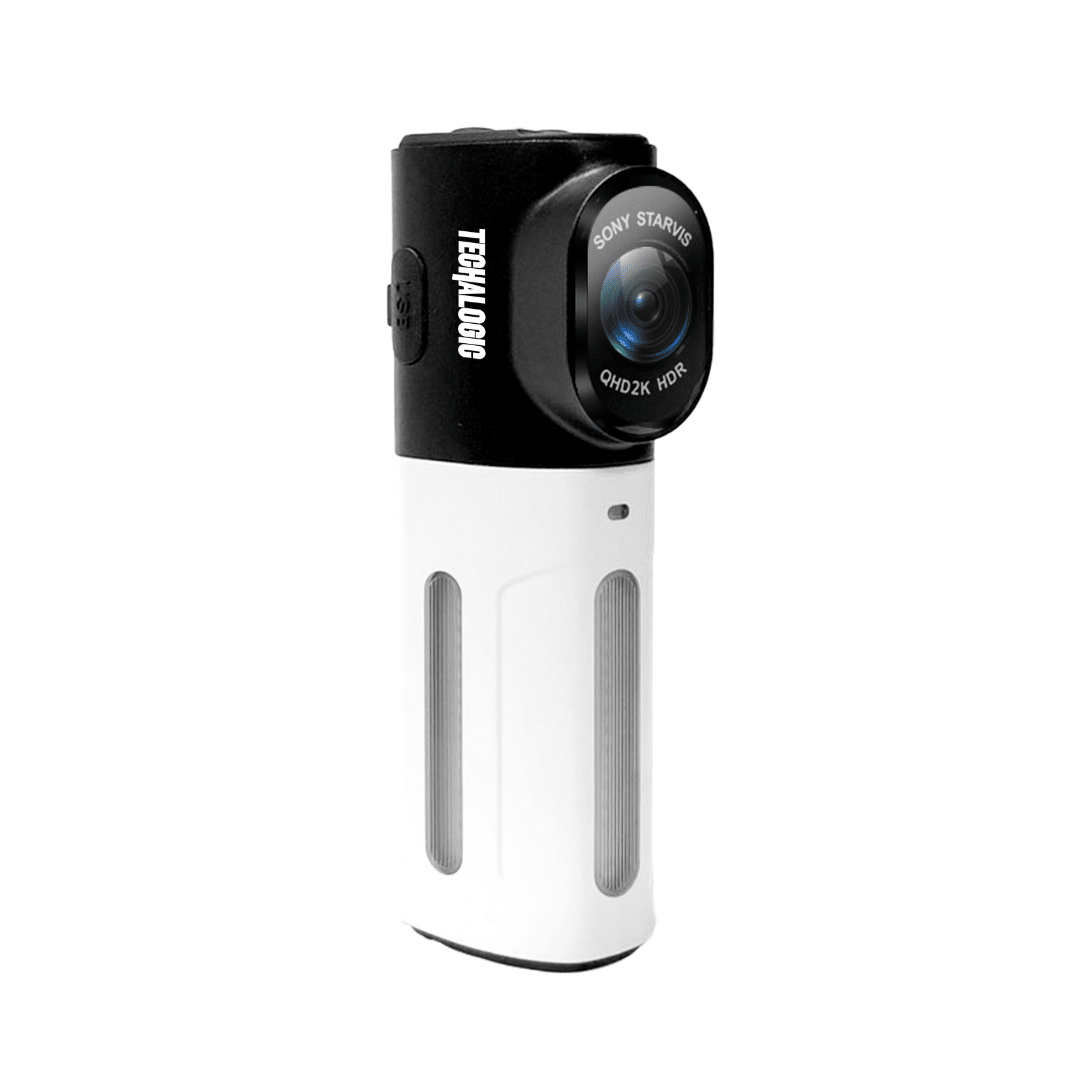
Your product reference
Manuals and downloads
Check the model printed on your product. Where more than one version is listed, match the hardware or purchase period before following the instructions.
Quick start
Use this alongside the manual for your exact model. Back up important recordings before formatting a card or changing firmware. Check mounting guidance from your helmet or bike manufacturer.
Step 1: Fully charge the camera
Before first use, fully charge the LC-2 Pro using the included Type-C cable and a 5V/2A power adapter. The blue indicator light stays on while charging and turns off when complete.
Step 2: Insert a memory card
1. The LC-2 Pro requires a microSD card with a maximum capacity of 128GB and a minimum write speed of U3/V30.
2. Insert the card into the microSD card slot until it clicks into place.
Step 3: Power on and basic functions
1. Power On/Off: Press and hold the Power Button (1).
2. Start/Stop Recording: The camera begins recording automatically on power-up (Green light blinking).
3. Cycle Light Modes: Press and hold the LED Light Button (3) to turn the light on/off. Short press to cycle through the 6 light modes.
Step 4: Pair with the Viidure app
1. Download the Viidure app from the Google Play or App Store by scanning the QR code on the packaging.
2. Power on the LC-2 Pro.
3. Short press the Power/Wi-Fi Button (1) to enable Wi-Fi. The indicator light will blink red.
4. On your phone's Wi-Fi settings, connect to the network: LC2-PRO_XXXXXX.
5. Enter the password: 12345678. The indicator light will turn solid red.
6. Open the Viidure app. You can now view live video, change settings, and download your files.
SD and TF cards:
▪ Important: Before using the camera, insert a formatted card or format the card via the Viidure app.
▪ Regular Maintenance: To maintain optimal performance, format your SD card at least once a month.
▪ How to Format: Connect to the camera via the app, go to [Camera Settings], and select [Format Memory Card].
Important Notes:
▪ Backup Files: Formatting will delete ALL files on the card. Back up any important footage first.
▪ Card Lifespan: SD cards have a finite lifespan. Because loop cameras write data constantly, we recommend high-quality "Endurance" cards. If you experience file errors, it may be time to replace your card.
Find an answer
Setup and troubleshooting
15 help topics
No matching topics. Try a shorter term or contact support.
Getting Started
What is in the LC-2 Pro box?
1 × LC-2 Pro, 1 × USB-C charging cable, 1 × silicone strap, 1 × velcro strap.
1 × pen clip mount and adapter, 1 × Garmin-compatible mount, seat post shims and spacers, 1 × handlebar spacer.
How long does the LC-2 Pro battery last?
The battery lasts up to 7.5 hours, depending on light mode and recording use.
Can I use the LC-2 Pro as a rear light without recording?
Yes. Turn on a light mode and do not press the recording button.
What memory cards are supported?
The LC-2 Pro supports Class 10, U3, V30 micro SD cards from 8GB to 128GB.
Is the LC-2 Pro weatherproof?
Yes.
LC-2 Pro is rated IP66, so it is built for rain and road spray. Keep the charging port cover closed when you ride in the wet.
How do I check the battery level?
When battery is low, the Red LED flashes rapidly. This function is off by default and must be enabled via the mobile app.
▪ Blue solid: Charging
▪ Blue off: Fully charged
▪ Alternating red/green: No memory card or card error
How long does it take to charge?
Approximately 3 hours for a full charge.
Wi-Fi & App Guidance
Why is my phone saying "No Internet Connection" when connected to the LC-2 Pro?
This is normal. Your phone is connected to the LC-2 Pro’s Wi-Fi network, not the internet.
The Viidure App isn’t connecting—what should I do?
Ensure:
- The LC-2 Pro is turned on and Wi-Fi is enabled
- Your phone is connected to "Techalogic" Wi-Fi network (Check your phone settings).
- If prompted, select "Keep" when your phone suggests switching Wi-Fi networks.
Recording & Video
Does the LC-2 Pro overwrite old footage?
Yes, loop recording automatically overwrites old files unless they are locked.
How do I lock a file to prevent it from being deleted?
The LC-2 Pro automatically locks files in the event of an impact (G-Sensor detection). You can also manually lock a file through the Viidure App.
Why are some files locked and not being overwritten?
These are impact-detected (G-Sensor) videos. You can delete them manually via the app or SD card.
Troubleshooting
The LC-2 Pro isn’t turning on—what should I do?
Try the following:
- Charge the battery fully.
- Reset the device using the reset button.
- Ensure the power button is held down for 2 seconds.
Why is my LC-2 Pro not recording?
Ensure:
- A compatible SD card is inserted.
- The SD card is formatted correctly.
- The Recording Button has been pressed (Green light flashing = recording).
The light isn’t turning on automatically at night—why?
Check if Twilight Sensor Mode is enabled in the Viidure App.
See how it works
Video tutorials
Choose a topic to watch. Some tutorials cover shared accessories or more than one camera; check the model and controls shown against your own equipment.
LC-2 Pro Tutorial | Attaching the Pen Clip Mount
Watch on YouTube ↗
 Techalogic LC-2 Pro | Changing the Light Modes
Watch on YouTube ↗
Techalogic LC-2 Pro | Changing the Light Modes
Watch on YouTube ↗
Still need a hand?
Tell us your model, hardware version, memory card and what happens. We will help you find the next step.