
 How to insert the SD card into the HC 1
Watch on YouTube ↗
How to insert the SD card into the HC 1
Watch on YouTube ↗
Techalogic support
HC-1 support
Lightweight forward recording. Find the right instructions, follow a tutorial or troubleshoot a problem.
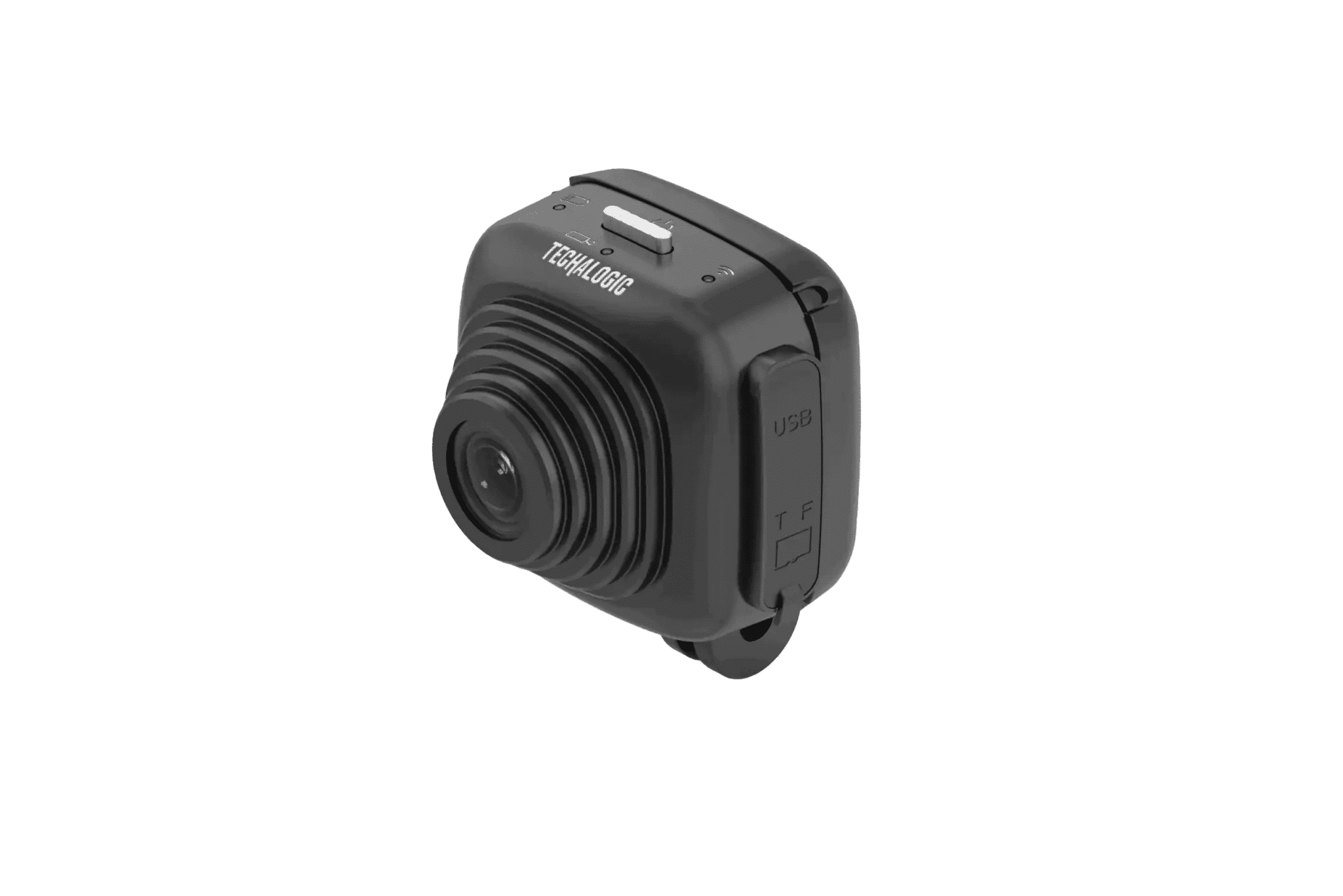
Your product reference
Manuals and downloads
Check the model printed on your product. Where more than one version is listed, match the hardware or purchase period before following the instructions.
Quick start
Use this alongside the manual for your exact model. Back up important recordings before formatting a card or changing firmware. Check mounting guidance from your helmet or bike manufacturer.
Charging Your Camera
• Use the provided micro USB cable to charge your HC-1.• Connect to a power source like a mains supply or powerbank for an efficient charge.• The Charging Indicator (Green LED) will light up during charging and turn off once fully charged.
Inserting the Micro SD Card
• The HC-1 supports Micro SD cards from 8GB to 256GB, Class 10 minimum.• Carefully insert the card into the Micro SD Card Slot until it clicks.• The camera will format the SD Card automatically when inserted for the first time, ensure your card is clear to avoid losing files.• Ensure the weatherproof cover is securely closed to maintain the camera's IP65 rating.
Turning your camera on and off
• To turn the camera on, long-press the On/Off button for 3 seconds.• To turn off, press and hold for 2 seconds.
Starting/Stopping Recording
• Once the camera is switched on, recording starts automatically.• The Recording Indicator (Red LED) shows the recording status: solid for recording, flashing for standby or errors.• Recording stops and saves upon power off.• To pause recording or take still images, do so via the app.
Wi-Fi Connectivity
• Activate Wi-Fi with a short press; the Wi-Fi Light Indicator (Blue LED) will confirm the status.
Connecting to the camera app
• Download the Techalogic app by scanning the QR code or searching "Helmet Camera" in your app store.• With the camera on, activate Wi-Fi and connect via your mobile device's Wi-Fi settings to the camera using the details in the instruction manual.
Mounting Your Camera
• Choose from various mounts included in your kit for helmet or hat attachment.• Use the 3M sticky pads for a secure fit and adjust the angle as needed for optimal recording.
Camera Maintenance
• Keep the lens clean for clear recordings.• Check mounts and brackets for secure attachment before each use.• Regularly format your Micro SD card within the app for optimal performance.
Battery Life
• Enjoy up to 2 hours 30 minutes of recording.
Important Notes
• Ensure the camera is fully charged before use.• Regularly check and format your Micro SD Card to maintain optimal performance.• We recommend using a dedicated SD card to avoid losing files when switching between cameras. The HC-1 will automatically format an SD that is entered for the first time.
Troubleshooting
• If the camera doesn't turn on or stops recording, check the battery charge and SD card status.• For Wi-Fi connection issues, ensure the camera's Wi-Fi is activated and your device is connected properly.• Refer to the user manual for detailed troubleshooting tips.
For detailed information on all features and additional settings, please refer to the full user manual provided with your camera.
Find an answer
Setup and troubleshooting
33 help topics
No matching topics. Try a shorter term or contact support.
Getting Started
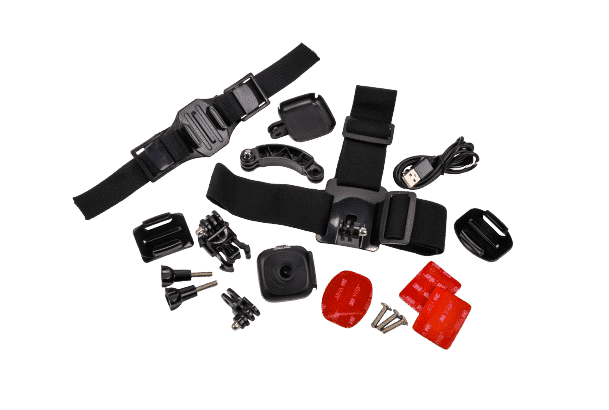
What is in the HC-1 box?
We provide the HC-1 camera with many items. Please check out the image below for the full details.
How do I charge the HC-1 camera?
When charging the HC-1 camera please use a mains supply (5v 2a Output Plug).
Some dedicated fast charge specific phone chargers i.e. Samsung are not suitable and will not charge the camera. You can also use a powerbank.
Use the charging lead provided with the camera. When the battery is full the battery LED will go out.
When charging please use a mains supply or power bank.
Note - A laptop or desktop computer USB will not fully charge the camera and you will experience poor battery performance.
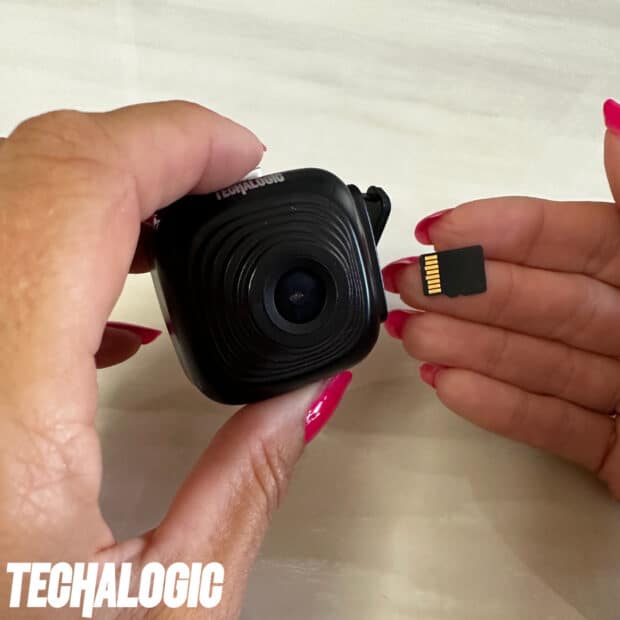
How to correctly Insert the micro SD card into the HC-1 camera?
Micro SD cards must be inserted in the correct way and clicked into place. It is very important that the card is placed into the HC-1 camera correctly otherwise internal damage could be caused. See the below image and video as a guide.
Lights/LED's on the HC-1 camera explained
Please check out the video below for full details of the LED's on the HC-1 camera.
How do I set the date and time on the HC-1 camera?
The HC-1 camera will auto set to your current time zone automatically after you connect the camera to the Wi-Fi/App for the first time.
How long is the HC-1 battery life?
The HC-1 battery will run for up to 2 to 2.5 hours on a full charge. Image quality selected and cold weather conditions can reduce the battery run time. If your battery is not running as expected please conduct a hard reset (reset button on the camera) and then an update of the firmware as this will often resolve the problem.
Is the HC-1 camera weather resistant?
Follow the weather-resistance guidance in the HC-1 manual. Close and secure all port covers before wet-weather use. Weather resistance does not mean the camera can be submerged. Check the separate instructions for any remote control or external power connection.
Wi-Fi & App Guidance
Turning the HC-1 camera Wi-Fi on/off & connecting to your mobile device/App
With the HC-1 powered on, use a short press of its button to enable Wi-Fi. Connect your phone directly to the camera network, then open the Helmet Camera app. Refer to the HC-1 manual for the connection details. Home Wi-Fi is not required.
How do I watch Live Footage on the App for the HC-1 camera?
Please watch video below to guide you through how to do this with the HC-1 camera.
I don't have Wi-Fi in my house/ at the yard so I cannot connect my phone to the HC-1 camera Wi-Fi.
The Wi-Fi is a direct connection between your mobile device/phone and the HC-1 camera. You do not need to be within a Wi-Fi area.
Why am I getting the message “No internet connection” when connected the HC-1 camera to Wi-Fi?
This is correct. You are connecting the HC-1 camera direct to your mobile device without any internet connection. Just select OK.
Having problems accessing the HC-1 camera App on my mobile device
Check that your phone is connected to the camera network and that the correct app has the permissions it requests for local camera access. Follow your device or security-software provider’s guidance for app permissions. If the connection still fails, contact support with your phone model, operating system and app name.
Which app should I use with the HC-1 camera?
For the HC-1 camera use Helmet Cam. Image of the App logo below.

Recording & Video
How many hours will I get on the HC-1 camera with different size SD cards?
The maximum card is 256gb. The amount of video that can be stored on your card varies depending on the memory size of the card and the video resolution.
Click here to view a guide to what you can expect with the HC-1
camera
.
How do I download video to my phone using the HC-1's App?
Connect your HC-1 camera to your mobile phone and access the Helmet Cam App. Select 'connect your device'. Follow the explainer video below for full details on how to do this.
Loop Recording Explained on the HC-1 camera
Loop recording suits safety cameras well. Via the camera settings on the App select the Loop segment times. This will enable the device to automatically overwrite the oldest video files when storage reaches its capacity. This ensures that the HC-1 camera continues to record without any interruptions, even when the memory card is full. By eliminating the need to manually delete or transfer files, loop record offers a hassle-free solution to continuous video when out on the road.
Fitting The Camera
Main HC-1 Camera Holder - Guide on how to use?
The bespoke HC-1 camera holder is designed and works with Gopro style fitments, giving you an array of mounting options. Watch the below explainer video to show how the camera is placed into and removed from the camera holder.
Fitting the HC-1 camera to a horse riding helmet
Everything required to fit your HC-1 camera to a riding hat is included in the box. Watch the below explainer video for full details and a guide.
Fitting the HC-1 camera to a cycle helmet
Everything required to fit your HC-1 camera to a cycle helmet is included in the box Watch the below explainer video for full details and guide.
Fitting the HC-1 camera to a motorcycle helmet
Everything required to fit your HC-1 camera to a motorbike helmet is included in the box. Watch the below explainer video for full details and a guide.
We do offer as an additional accessory, the chin strap mount. We have also teamed up with "Chinmounts" who offer a bespoke mount service for 100's of helmets. www.chinmounts.com
How do I line up the HC-1 for the best field of view?
Setting the HC-1 at the right angle gives you the most useful field of view (FOV). Our advice is to mount the camera, and then connect via the App to live view. Get into your normal seated position. You can then check on the live view that you have the angle correct.
Securing the rubber waterproof door on the HC-1 camera
It is essential that the rubber door (covering sd card slot & charging port) is properly sealed on your HC-1 camera. Please watch the explainer video below.
Troubleshooting
HC-1 camera keeps switching off
This could be for a number of reasons.
- HC-1 Battery not charged
- The SD card is full and you do not have the loop record feature turned on
- Faulty SD card
What is the default password on the HC-1 camera?
The default password on the HC-1 camera is 12345678.
HC-1: I have changed my Wi-Fi password and have now forgotten it. What do I do?
The original support instructions use a firmware update to reset the camera. Read the model-specific firmware guide below and confirm your hardware version first. If you are unsure, contact support before proceeding.
I am having problems accessing the HC-1's App on my mobile device
Check that your phone is connected to the camera network and that the correct app has the permissions it requests for local camera access. Follow your device or security-software provider’s guidance for app permissions. If the connection still fails, contact support with your phone model, operating system and app name.
Issues connecting to the HC-1 cameras Wi-Fi
Wi-Fi apps are a very confusing world especially as there are so many mobile phones available. If you are experiencing any problems connecting the HC-1 or using the app, place your mobile device on Flight/Airplane Mode. This generally smooths out the Wi-Fi connection and you should be good to go.
My HC-1 camera battery is not lasting as expected
When charging the HC-1 camera please use a mains supply (5v 2a Output Plug).
Some dedicated fast charge specific phone chargers i.e. Samsung are not suitable and will not charge the camera. You can also use a powerbank.
The camera will not fully charge if you are not using the charging cable provided. The camera must also be charged via mains or a powerbank supply. The USB port on any computer or laptop will not provide the power required to fully charge the battery. If you are still having problems conduct a hard reset (button on camera, you will require a paperclip or similar) failing that conduct a firmware update explained on this support page.
Is there anything that can be done to improve video stabilisation on the HC-1 camera?
The HC-1 camera does not have any form of electronic image stabilisation built in.
However you can use the Shotcut software (Free Option) to help improve video image stabilisation should this be required https://shotcut.org
This video explains how this works and how to use the Shotcut software.
My HC-1 Camera is freezing
If your HC-1 camera freezes, it can be reset by pushing the reset button under the USB flap. Press and hold for 15 seconds or until LEDs go out. if that does not resolve please update the firmware which is explained on this support page.
Where can I get replacement HC-1 camera Accessories?
All HC-1 accessories are in the accessories range.
Why does my HC-1 camera not record continuous video?
It's a road safety camera and loop recording is an important feature. To allow loop recording and the oldest files to be overwritten on the HC-1, video files must be segmented. The segment length can be changed with the settings.
HC-1 camera Sound Quality/Microphone Sensitivity Level
You can adjust the HC-1 camera's sound sensitivity settings within the settings located on the App.
See how it works
Video tutorials
Choose a topic to watch. Some tutorials cover shared accessories or more than one camera; check the model and controls shown against your own equipment.
How to insert the SD card into the HC 1
Watch on YouTube ↗
 What do the lights mean on the HC 1
Watch on YouTube ↗
What do the lights mean on the HC 1
Watch on YouTube ↗
 How do I watch live footage on the HC 1?
Watch on YouTube ↗
How do I watch live footage on the HC 1?
Watch on YouTube ↗
 How to view your videos on the HC-1
Watch on YouTube ↗
How to view your videos on the HC-1
Watch on YouTube ↗
 NEW Techalogic HC-1
Watch on YouTube ↗
NEW Techalogic HC-1
Watch on YouTube ↗
 NEW Techalogic HC-1 Helmet Camera - Riding Hat
Watch on YouTube ↗
NEW Techalogic HC-1 Helmet Camera - Riding Hat
Watch on YouTube ↗
 NEW Techalogic HC-1 Helmet Camera - Cycle Helmet
Watch on YouTube ↗
NEW Techalogic HC-1 Helmet Camera - Cycle Helmet
Watch on YouTube ↗
 NEW Techalogic HC-1 Helmet Camera - Mounted on Motorcycle Helmet
Watch on YouTube ↗
NEW Techalogic HC-1 Helmet Camera - Mounted on Motorcycle Helmet
Watch on YouTube ↗
 How do I seal the rubber door to the HC 1?
Watch on YouTube ↗
How do I seal the rubber door to the HC 1?
Watch on YouTube ↗
Match your hardware
Firmware and update instructions
Read the update instructions first. Match the exact model and hardware version before downloading. Keep the original BIN filename and follow the guide; files for other models or versions are not interchangeable. If you are unsure which version you own, contact support before updating.
Still need a hand?
Tell us your model, hardware version, memory card and what happens. We will help you find the next step.