
 DC-2 Pro - What's in the box
Watch on YouTube ↗
DC-2 Pro - What's in the box
Watch on YouTube ↗
Techalogic support
DC-2 Pro support
Dual-lens recording, remote control and GPS help. Find the right instructions, follow a tutorial or troubleshoot a problem.
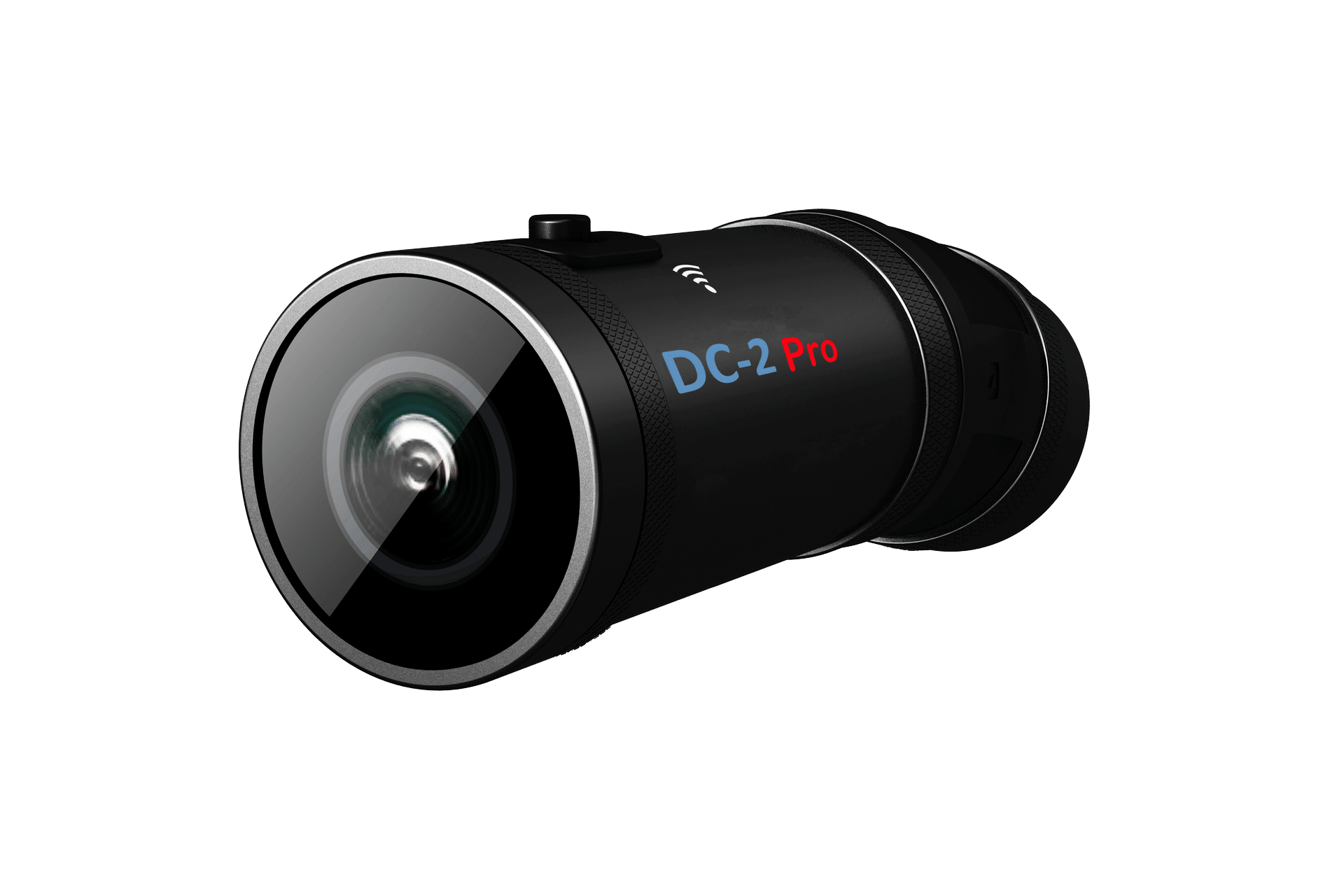
Your product reference
Manuals and downloads
Check the model printed on your product. Where more than one version is listed, match the hardware or purchase period before following the instructions.
Quick start
Use this alongside the manual for your exact model. Back up important recordings before formatting a card or changing firmware. Check mounting guidance from your helmet or bike manufacturer.
Charging Your Camera
• Use the included Type-C charging cable to charge your DC-2 Pro.• Connect the cable to a power source; mains supply or a powerbank or is recommended.• The battery LED (RED) will remain on whilst charging.
Inserting the Micro SD Card
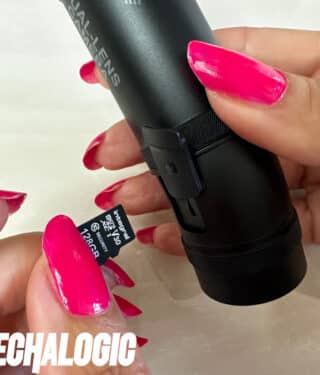
• Your DC-2 Pro supports up to 128GB Micro SD Card (not included).• Gently insert the card into the card slot until it clicks into place.
Turning your camera on and off
• To power on, long-press the Key Button (3 seconds).• The camera will automatically begin recording.• To power off, repeat the long-press action.• The camera will automatically save any recording in progress.
Starting/Stopping Recording
• The camera will automatically begin recording when switched on.• A short press on the Key Button will stop the recording.• A short press on the Key Button will also begin recording again.• The Recording LED (WHITE) will indicate the recording status.
Wi-Fi Connectivity
• Quickly press the Key Button twice to turn Wi-Fi on or off.• Connect to your mobile device for extended functionality.• In your phone Wi-Fi settings use the username and password detailed in your manual to connect.• You will now be able to use the Viidure App.
Viidure App Connectivity
• Download the app from Apple or Android / Google Store.• Connect to the Wi-Fi as above and follow the instructions in the app to add the camera to the app.
Waterproofing Your Connection
• Utilise the USB port waterproof pack provided to protect your connections during wet conditions.• Ensure all covers and rings are securely in place before exposure to water.
Optional Accessories
• Consider enhancing your DC-2 Pro with an optional wireless controller for convenient photo capture and file locking.• Add an optional GPS module to record your speed and route details.
Camera Maintenance
• For any system resets, locate the Main Reset Button next to the USB Port and use accordingly.
Battery Life
• Enjoy up to 4 hours of recording time on a full charge, depending on your selected resolution and frame rate.
Mounting Your Camera
• Choose from various mounts included in your kit for desired attachment.• Use the 3M sticky pads for a secure fit and adjust the angle as needed for optimal recording.• . Use the app as a viewfinder to check and adjust your desired aspect for each camera.
Important Notes
• Ensure the camera is fully charged before use.• Regularly check and format your Micro SD Card to maintain optimal performance. Tap the Key Button 5 times to format the card or use the app (refer to user manual for detailed instructions).
Troubleshooting
• If the camera doesn't turn on or stops recording, check the battery charge and SD card status.• For Wi-Fi connection issues, ensure the camera's Wi-Fi is activated and your device is connected properly.• Refer to the user manual for detailed troubleshooting tips.
For detailed information on all features and additional settings, please refer to the full user manual provided with your camera.
Find an answer
Setup and troubleshooting
46 help topics
No matching topics. Try a shorter term or contact support.
Getting Started
What is in the DC-2 Pro box?
We provide the camera with many items. Please check out the video for the full details
How do I charge the DC-2 Pro camera?
When charging the DC-2 Pro camera please use a mains supply (5v 2a Output Plug).
Some dedicated fast charge specific phone chargers i.e. Samsung are not suitable and will not charge the camera. You can also use a powerbank.
Use the charging lead provided with the camera. When the battery is full the battery LED will go out.
When charging please use a mains supply or power bank.
Note - A laptop or desktop computer USB will not fully charge the camera and you will experience poor battery performance.
How to correctly Insert the micro SD card into the DC-2 Pro?
Micro Sd cards must be inserted correctly and clicked into place. It is very important that the card is placed in correctly otherwise internal damage could be caused. See the below image and video as a guide.
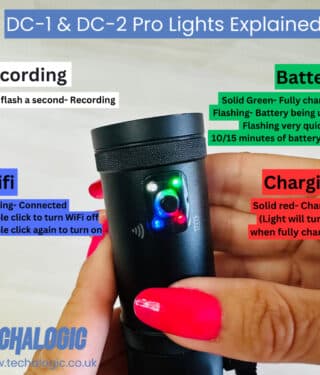
Lights/LED's on the camera explained on the DC-2 Pro
Please check out the image and video below for full details of the LED's.
How do I set the DC-2 Pro date and time?
The DC-2 Pro camera will auton set to your current time zone automatically after you connect the camera to the Wi-Fi/App for the first time.
If you connect to GPS the time will be taken from the satelite. This will show a time difference of one hour during British Summer Time. In order to ensure the correct time when using GPS, select whether BST is active in the app menu to correct the clock.
Can files be transferred via the charging cable?
No, due to the size, weight and feature packed nature of the DC-2 Pro we did not opt to build a camera with cable data transfer. The main reason being that removeable media and app connectivity have been the most popular methods of data transfer for many years.
How do I use the DC-2 Pro's Remote Control?
The remote control will only function when the camera is powered on. It is for taking photos and locking important video files. These files will be located on the App under the relevant folder. Check out the video below on how to use the remote.
How long is the battery life on the DC-2 Pro?
The DC-2 Pro battery will run for up to 4 hours on a full charge. Image quality selected and cold weather conditions can reduce the battery run time. For example, the camera records for 3.5-4 hours at 1080p. At 2K the recording time is less. The battery life can be extended on-the-go by using a Powerbank, please see the FAQ for this. If your battery is not running as expected please conduct a hard reset (reset button on the camera) and then an update of the firmware as this will often resolve the problem.
Using a Powerbank to extend battery Life on the DC-2 Pro
The DC-2 battery will run for up to 3.5 to 4 hours on a full charge. This can be extended as the camera will operate whilst connected to a power bank. Please see the below video for more detail on how to do this.
Is the DC-2 Pro Camera/Remote Control weather resistant?
Follow the weather-resistance guidance in the DC-2 Pro manual. Close and secure all port covers before wet-weather use. Weather resistance does not mean the camera can be submerged. Check the separate instructions for any remote control or external power connection.
Using your DC-2 Pro as a rear view mirror
DC-2 Pro supports mirror-flipped live view in compatible firmware, introduced in version 1.01. Use live view while stationary to check the camera angle. It does not replace direct observation or mirrors while riding. See the firmware section for the available update and instructions.
Wi-Fi & App Guidance
Turning the DC-2 Pro camera Wi-Fi on/off & connecting to your mobile device/App
Please watch video below to guide you through how to do this.
How do I watch Live Footage on the App for the DC-2 Pro ?
Please watch the video below to guide you through how to do this.
I don't have Wi-Fi in my house/ at the yard so I cannot connect my phone to the DC-2 Pro camera Wi-Fi
The Wi-Fi is a direct connection between your mobile device/phone and the DC-2 Pro camera. You do not need to be within a Wi-Fi area.
Why am I getting the message “No internet connection” when connected the DC-2 Pro camera to Wi-Fi?
This is correct. You are connecting the DC-2 Pro camera direct to your mobile device without any internet connection. Just select OK.
Having problems accessing the DC-2 Pro App on my mobile device
Check that your phone is connected to the camera network and that the correct app has the permissions it requests for local camera access. Follow your device or security-software provider’s guidance for app permissions. If the connection still fails, contact support with your phone model, operating system and app name.
Which app should I use with my DC-2 Pro ?
Viidure App. Image of the App logo below.

Viewing video and photo files from my DC-2 Pro
Turn your DC-2 Pro camera on with the SD card inserted. Connect via Wi-Fi to your mobile device. Then access the Viidure App, connect the camera and view video files. See the below video for a visual guide.
Recording & Video
How many hours will I get on different size SD cards in my DC-2 Pro ?
The maximum card is 128gb. The amount of video that can be stored on your card varies depending on the memory size of the card and the video resolution.
How do I download the DC-2 Pro camera's video to my phone using the App - Viidure?
Connect your camera to your mobile phone and access the Viidure App. Select 'connect your device'. Follow the explainer video below for full details on how to do this.
DC-2 Pro loop recording explained
Loop recording suits safety cameras well. Via the camera settings on the App select the Loop segment times. This will enable the device to automatically overwrite the oldest video files when storage reaches its capacity. This ensures that the DC-2 Pro camera continues to record without any interruptions, even when the memory card is full. By eliminating the need to manually delete or transfer files, loop record offers a hassle-free solution to continuous video when out on the road.
Video Codec h.265 - Video playback and editing for the DC-2 Pro camera
H.265 (HEVC) recordings need compatible playback or editing software. Keep your original files before converting or editing a copy. If playback is not working, tell support your camera model, recording settings, computer or phone and the app you are using.
Editing DC-2 Pro Video using the Viidure App
The Viidure App has a basic editing function. Connect via Wi-Fi your camera and mobile phone, access the App and follow the explainer video below.
Fitting The Camera
How to attach the strap to the hat
Watch the below explainer video for full details and guidance. Watch the tutorial below ↓
Fitting the DC-2 Pro camera to a horse riding helmet
Everything required to fit your camera to a horse-riding helmet is included in the box. Watch below explainer video for full details and guide.
Fitting the DC-2 Pro camera to a cycle helmet
Everything required to fit your camera to a cycle helmet is included in the box. Watch below explainer video for full details and guide.
Fitting the DC-2 Pro camera to a motorcycle helmet
Everything required to fit your camera to a motorbike helmet is included in the box. Watch below explainer video for full details and guide.
DC-2 Pro: Fitting the Shoulder Strap
The shoulder strap has 3 variations/options. You can wear the double sided option that in our opinion gives you the sturdiest mount and the camera can be mounted on either the left or right shoulder. The camera mount on the side not being used can be removed. You then have the single option for either left or right hand shoulder.
How do I line up the DC-2 Pro for clear front and rear video?
Setting the DC-2 Pro at the right angle gives you the most useful field of view (FOV). Our advice is to mount the camera, then connect via the App to live view. Get into your normal seated position. You can then check on the live view that you have the angle correct.
The main DC-2 Pro camera holder Explained
The main camera holder/ring has been designed to firmly hold the camera during your ride. At the same time as offering lots of adjustment to achieve the ideal mounting position. Please watch the below explainer video for full details.
Using a powerbank with your DC-2 Pro camera
To extend the battery life of your camera you can connect it via a powerbank. Watch the below explainer video for detail on how to do this.
GPS Module
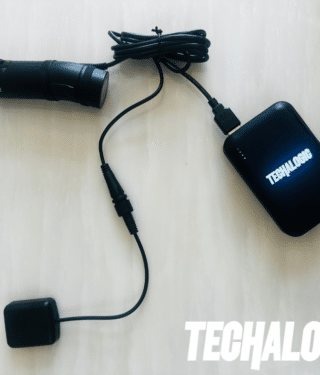
How to connect the GPS module to the DC-2 Pro?
The GPS module is connected via the cable provided. Check out image below on how to do this. It is advised to locate the GPS module 15/20cm away from the main camera unit. If you are not using a powerbank the GPS will use appx 30% more battery.
How do I view GPS data/speed/mapping on the DC-2 Pro?
Power on the camera and connect via Wi-Fi to the Viidure App. Within the App review the video documents stored. Select download to your mobile device as GPS data can only be reviewed after the video file has been saved to your phone. Then once it has been downloaded you will be able to review your mapping and speed etc. Check out video below on how it should look.
Is the DC-2 Pro GPS water resistant?
The GPS unit is designed for use in any weather.
How to position the DC-2 Pro GPS module?
The GPS unit relies on connecting to a satellite to operate. So the module must be open to the sky. We suggest trying the module in the desired location as successful mounting options do vary from user to user. The GPS module must be located 15/20cm away from the main camera unit.
Why is the time different by 1 hour with GPS on?
If you connect to GPS the time will be taken from the satelite. This will show a time difference of one hour during British Summer Time. In order to ensure the correct time when using GPS, select whether BST is active in the app menu to correct the clock.
I sometimes lose GPS signal/mapping/speed on my DC-2 Pro
This could be for a number of reasons.
- The GPS module is not correctly located and open to the sky.
- Poor satellite coverage in the area you were in.
- Poor/loose connection of the GPS Type C connection to the DC-2 Pro camera.
Troubleshooting
DC-2 Pro Camera keeps switching off
This could be for a number of reasons.
- Battery not charged Energy-saving feature will turn the DC-2 Pro camera off if not being used and stationary
- The SD card is full and you do not have the loop record feature turned on
- Faulty SD card
- Your SD card has not been reformatted. If the white and green LEDs are flashing fast the card requires formatting. The camera will auto shut down if the card has not been formatted.
What is the default password on the DC-2 Pro?
The default password on the DC-2 Pro is 12345678.
DC-2 Pro: I have changed my Wi-Fi password and have now forgotten it. What do I do?
The original support instructions use a firmware update to reset the camera. Read the model-specific firmware guide below and confirm your hardware version first. If you are unsure, contact support before proceeding.
Issues connecting to the DC-2 Pro cameras Wi-Fi
Wi-Fi apps are a very confusing world especially as there are so many mobile phones available.
If you are experiencing any problems connecting the DC-2 Pro or using the app, place your mobile device on Flight/Airplane Mode. This generally smooths out the Wi-Fi connection and you should be good to go.
My DC-2 Pro camera battery is not lasting as expected
When charging the DC-2 Pro please use a mains supply (5v 2a Output Plug).
Some dedicated fast charge specific phone chargers i.e. Samsung are not suitable and will not charge the camera. You can also use a powerbank.
The camera will not fully charge if you are not using the charging cable provided. The camera must also be charged via mains or a powerbank supply. The USB port on any computer or laptop will not provide the power required to fully charge the battery. If you are still having problems conduct a hard reset (button on camera, you will require a paperclip or similar) failing that conduct a firmware update explained on this support page. Note if you are using the GPS feature without a powerbank your battery consumption will reduce by appx 30%.
The battery lasts up to 4 hours when recording at 1080p, increasing the resolution of the recording, or cold weather can impact battery life.
My DC-2 Pro's Remote Control has stopped working
It is likely that the DC-2 Pro's remote control battery is flat. You can use a coin or similar to open the battery cover and replace the battery. The battery type is CR2032.
The video front or rear on my DC-2 Pro is too high/low
DC-2 Pro is designed to record a clear view of the road ahead and behind. Hop onto the App and check out the live view. Get into your normal seating position and adjust the camera angle until it's 100%.
Why does my DC-2 Pro camera not record continuous video?
It's a road safety camera and loop recording is an important feature. To allow loop recording on the DC-2 Pro camera and the oldest files to be overwritten video files must be segmented. The segment length can be changed with the settings
DC-2 Pro sound quality and microphone sensitivity
You can adjust the DC-2 Pro sound sensitivity settings within the settings located on the App.
See how it works
Video tutorials
Choose a topic to watch. Some tutorials cover shared accessories or more than one camera; check the model and controls shown against your own equipment.
DC-2 Pro - What's in the box
Watch on YouTube ↗
 How to correctly insert the micro SD card into the DC-1 camera?
Watch on YouTube ↗
How to correctly insert the micro SD card into the DC-1 camera?
Watch on YouTube ↗
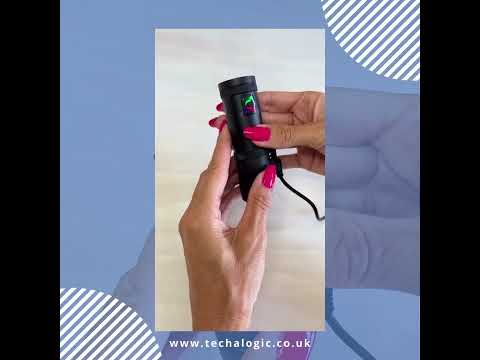 What do the lights on the DC 1 mean?
Watch on YouTube ↗
What do the lights on the DC 1 mean?
Watch on YouTube ↗
 How to use the Remote Control
Watch on YouTube ↗
How to use the Remote Control
Watch on YouTube ↗
 How do I extend the battery life of the DC 2 Pro using a power bank?
Watch on YouTube ↗
How do I extend the battery life of the DC 2 Pro using a power bank?
Watch on YouTube ↗
 How do I connect my camera to the App?
Watch on YouTube ↗
How do I connect my camera to the App?
Watch on YouTube ↗
 How do I watch live view on the DC-1 or DC-2 Pro?
Watch on YouTube ↗
How do I watch live view on the DC-1 or DC-2 Pro?
Watch on YouTube ↗
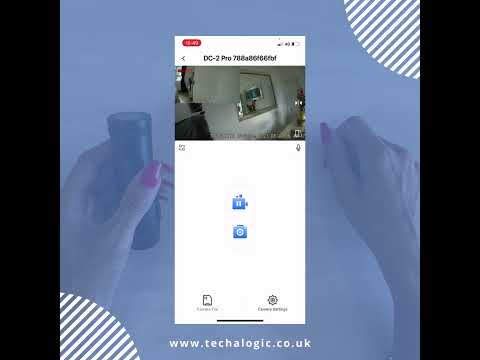 How to view videos and snapshots on the Viidure app?
Watch on YouTube ↗
How to view videos and snapshots on the Viidure app?
Watch on YouTube ↗
 How to download a video for a DC camera?
Watch on YouTube ↗
How to download a video for a DC camera?
Watch on YouTube ↗
 How do I edit a video for the DC 1DC 2
Watch on YouTube ↗
How do I edit a video for the DC 1DC 2
Watch on YouTube ↗
 Fitting the Camera using the Equestrian Elasticated Strap
Watch on YouTube ↗
Fitting the Camera using the Equestrian Elasticated Strap
Watch on YouTube ↗
 Fitting the camera to a cycling helmet
Watch on YouTube ↗
Fitting the camera to a cycling helmet
Watch on YouTube ↗
 Fitting the Camera to a Motorbike Helmet
Watch on YouTube ↗
Fitting the Camera to a Motorbike Helmet
Watch on YouTube ↗
 Fitting Camera to the Basic Mount
Watch on YouTube ↗
Fitting Camera to the Basic Mount
Watch on YouTube ↗
 Techalogic DC-2 Pro Dual Lens Camera - GPS map
Watch on YouTube ↗
Techalogic DC-2 Pro Dual Lens Camera - GPS map
Watch on YouTube ↗
 Techalogic DC-1 & DC-2 Pro - How to fit the camera to A Horse Riding Hat
Watch on YouTube ↗
Techalogic DC-1 & DC-2 Pro - How to fit the camera to A Horse Riding Hat
Watch on YouTube ↗
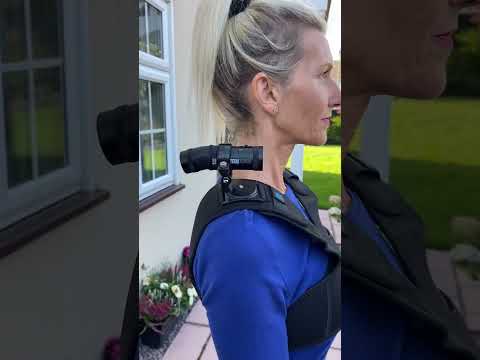 Dual & Single Adjustable Shoulder Strap for DC-1, DC-2 Pro and XV Camera's - Double Shoulder
Watch on YouTube ↗
Dual & Single Adjustable Shoulder Strap for DC-1, DC-2 Pro and XV Camera's - Double Shoulder
Watch on YouTube ↗
 Dual & Single Adjustable Shoulder Strap for DC-1, DC-2 Pro and XV Camera's - Right Shoulder
Watch on YouTube ↗
Dual & Single Adjustable Shoulder Strap for DC-1, DC-2 Pro and XV Camera's - Right Shoulder
Watch on YouTube ↗
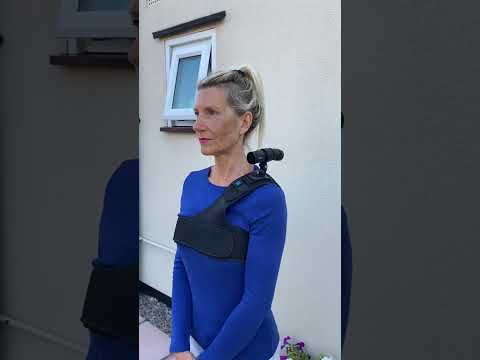 Dual & Single Adjustable Shoulder Strap for DC-1, DC-2 Pro and XV Camera's - Left Shoulder
Watch on YouTube ↗
Dual & Single Adjustable Shoulder Strap for DC-1, DC-2 Pro and XV Camera's - Left Shoulder
Watch on YouTube ↗
 Dual & Single Adjustable Shoulder Strap for DC-1, DC-2 Pro and XV Camera's - Double GPS
Watch on YouTube ↗
Dual & Single Adjustable Shoulder Strap for DC-1, DC-2 Pro and XV Camera's - Double GPS
Watch on YouTube ↗
Match your hardware
Firmware and update instructions
Read the update instructions first. Match the exact model and hardware version before downloading. Keep the original BIN filename and follow the guide; files for other models or versions are not interchangeable. If you are unsure which version you own, contact support before updating.
Version 1.02 · 15 December 2023: adds a GPS setting for British Summer Time. When GPS supplies the camera time, this setting adjusts the displayed UK time during BST.
DC-2 Pro — source release dated 15 December 2023
Still need a hand?
Tell us your model, hardware version, memory card and what happens. We will help you find the next step.